by Patrix
The introduction of the Apple Watch in 2014 was the first indication after the death of Jobs that Apple had lost it’s way.
Most agree now that the Apple Watch is a failure. In the same fashion, the Touch Bar on the MacBook Pro is proving to be a failure. And now, we will eventually see the iPhone 8 and iPhone X become flash-in-the-pan failures too. The cameras are impressive, but not for the price points. Apple has become arrogant, sloppy, and almost mundane now.
But Apple’s greatest violation is it’s fascist approach to the ecosphere it creates around it’s hardware and software. Like Google and FaceBook, it handcuffs it’s users at every point of contact. It really gets in the way of doing simple tasks.
Unfortunately, we’ve come to a point where we need a new “Apple” to emerge to once again democratize technology for the folk.
I think it is still possible for this type of tech to appear. The current success of Bitcoin is a beacon of that vision in the technosphere.

by Patrix
It appears that Apple’s estimates for battery life for the new MacBook Pros were overstated. Instead of the claimed 10-hour battery life, it appears that the true battery life is closer to 5 hours.
Many new MacBook Pro owners are now unhappy.
In an earlier post, I expressed how unimpressed I was with the TouchBar in terms of functionality and usefulness. It turns out that the TouchBar is also partially responsible for the reduced battery life in terms of power consumption and displaced space for a larger battery.
Apple must become more transparent about it’s shortcomings if they are to keep their customer-base. I think they must also better understand value. The $2,800 entry-point for the 15″ MacBook Pro is a pricey proposition for a laptop that will hold a charge for only 5 hours.
Let’s hope Apple can quickly relearn how to be more in sync with the fans.

by Patrix
Apple just introduced a new line of MacBook Pros with more power, a Touch Bar, and some hefty prices.
I am not impressed.
I’ve never much liked the whole concept of a touch pad. I’ve always found them unintuitive and inconvenient. If I want to use my fingers on a surface, I want that surface to be the display itself. Dragging my fingers across a metal plate is not a confidence-inspiring experience. And now, dragging my fingers across a narrow bar, awkwardly placed at the top of a keyboard, is even less desirable.
Since the introduction of the Apple Watch, I began to lose confidence in Apple’s design team. The dismal sales of the Apple Watch should’ve been a clue that their design team has lost it’s way. Has Jony Ive run out of good ideas?
Unfortunately, the Touch Bar on the new MacBook Pros looks to be another gimmick, much like the Apple Watch. There is some indication that Apple may subconsciously know this since they are offering one model without the Touch Bar.
I appreciate the smaller size and more powerful architecture, but that is about all I can appreciate about this new lineup of MacBook Pros.

by Patrix
In Part 1 of this series, I detailed the process of creating an eBook (in the ePub format) using Apple’s Pages application.
In this Part 2, I will quickly go over some considerations when inserting audio and video files into your eBook.
The large majority of eBook platforms read the EPub format, which is an open standard announced by the International Digital Publishing Forum (IDPF) in 2007. (It should be noted that Amazon’s Kindle reader does not read the EPub format.) Apple’s Pages application can create eBooks in the EPub format quite easily (see Part 1 of this series.)
While the EPub format does not currently have a mandatory support for audio or video file formats in EPub, it does appear that the IDPF is headed in that direction. In the meantime, Apple supports both audio and video file insertion into the EPub format for their devices. And this can be done in Pages.

Inserting Audio Files
The most important thing to know about inserting audio files into an eBook in Pages is that the audio file formats must be in either the .mp3 or .m4a formats. Then, it’s just a matter of inserting the file into the text using Pages’ Insert menu.
When the file is inserted, it looks like this.

This is how the file appears in Pages.
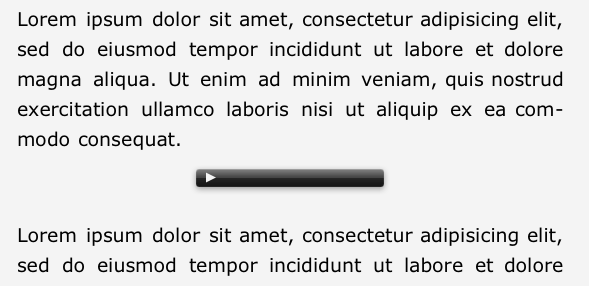
Once the document is exported into the EPub format and opened in an eBook reader, the audio file is embedded into the text and looks like this:
Audio in eBook.
To hear the audio, the eBook user simply clicks on the arrow in the black bar and the audio begins playing.
Inserting Video Files
The most important thing to know about embedding a video file is this: Video files MUST be in the .m4v format.
Otherwise, the embedding process is the same as it is for embedding audio files. I’ve also found that it helps to put a return before and after the position where the video file is embedded. This helps to create proper spacing, and it allows you to left, center, or right justify the position of the video window by applying this justification to the paragraphs before and after the video.
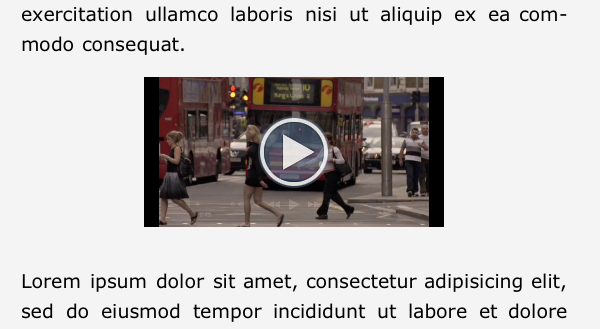
The video is embedded into the eBook and looks like this to the eBook reader:

The video in an eBook
EBook Production
The tools to create and self publish eBooks are now available on our desktops. This relatively recent trend makes it much easier for us to become both author and publisher. When you’re ready to distribute your eBook, check out Apple’s iBookstore.
by Patrix
Note: Part 2 of this series covers adding sound and video files to your ebook.
Ebooks are now a common part of our digital landscape. This year promises to bring a significant increase in the number of choices of tablet-like mobile devices. This is likely to only add to the astonishing growth in ebook consumption. But ebook consumption isn’t the only area that is likely to experience tremendous growth this year. It appears that ebook production has arrived for the common man/woman.
There are many advantages of this type of self-publishing for both business and educational folk alike:
- relatively low barrier to entry
- establish expertise in subject area
- increasing number of distribution channels
- multimedia potential of the ebook (epub) format
- low overhead
- great marketing/promotional medium
- great educational medium
When you see just how easy it is to create an ebook with Apple’s Pages software, you may decide to become an author yourself.
Pages has had the ability to export to the ePub format since the release of iWork 9.0.4 in August of 2010. At that time, Pages had some rough edges when it came producing a well formatted ebook. When Apple released Pages 4.0.5 in January, 2011, it greatly improved the semantics of their ePub export. Today, with some careful attention to a few details and methods, you can create an ePub-formatted ebook.
It’s important to point out that while the ePub format works on most ebook readers (including Apple’s iBook reader) and is opensource, it is not the format used by Amazon’s Kindle reader (which uses the MOBI format). There are software tools, like Calibre, available to convert from ePub to MOBI. (I may do a post in the future going over these conversion tools and options.)
Getting Started
The best way to get started with creating an ebook in Pages is to download a template that Apple has created for making ebooks. Download it here: eBook Template
When you open this file in Pages, you’ll notice styles in the Styles Drawer that are specific to tagging an ebook. These styles are applied to the elements of your book to properly format the document for the ePub export. The pages in this document have examples of these styles applied to text and a brief description of how they should be used.

(Click on illustrations to enlarge.)
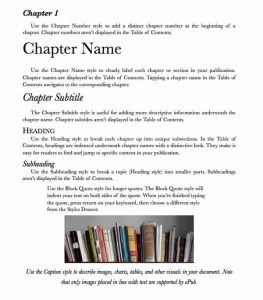
- Examples of styles
Dealing With Images
There are a few things to keep in mind as you create your book. If you will be inserting images into your book, you must make sure that you set them to be “inline” images. That is, the images flow with the text rather than independent of the text. To do that, click on the image, and in the Inspector click on the Wrap Inspector tab, then click on the Inline (moves with text) radio button. This assures that the images in your ebook stay with the appropriate text even when the ebook reader adjusts the font sizes.
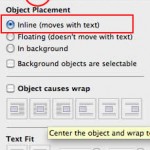
Inspector
Images can wrap in 6 different ways. You’ll need to check the Object causes wrap checkbox on the Inspector pane. Then click on one of the six illustrations below this checkbox to indicate how the image will behave in the text. The illustrations provide an efficient way of explaining how each work.

image wrap
Dealing With Font Sizes
I found the font sizes in this template to be too large (especially if your Titles or Heads are lengthy). This caused many of my titles in the ebook to overwhelm the page. You can test this with your own ebook, but generally I found that bumping the Title, Head, and SubHead font sizes down 10-15 pts worked well.
Testing Your eBook Along The Way
The best way to perfect the look and feel of your ebook is to export your Pages document to the ePub format and test on an ebook reader. This process is simple. I find myself going through this process several times in the creation of an ebook.
First, save your Pages document. Then, under the Share menu choose Export… This brings up a window indicating the export options.

Export options
Click on the ePub tab at the top and then click on the Next… button. Save the epub to your computer’s desktop.
Getting The Ebook to Your Reader
There are several ways to get the ePub file to your ebook reader, but I will go over the two easiest ways.
The first is simply to email the ePub file to yourself as an attachment. Then open the email on your ebook reader device and send it to your eReader. On an iPad or iPhone, clicking on the ePub file attachment brings up a dialogue box asking if you’d like to send it to iBooks. It then sends it to iBook and opens your book for you to begin reading.
The second way is open iTunes on your computer and then drag the ePub file into iTunes. This places the file into the Books area in iTunes. Then you simply sync your iPad/iPhone to your computer and the book appears in your iBooks library.
In part 2 of this series, I will go over the specific methods for adding sound files and video files to your ebook. Stay tuned!